Setup guide
Takes about 2 minutes, once. Button names can vary slightly between Garmin models.
1. Install
- On your phone, open the Connect IQ app (or Garmin Connect → Connect IQ Store), search RoxPace and install it. Keep your watch near your phone so it syncs.
2. Add it to your race activity
- From the watch face, press START and highlight the activity you'll race with, for example Run. Don't start it.
- Hold MENU (the middle button on the left) to open that activity's settings.
- Go to Data Screens, then pick a screen or choose Add New.
- Choose Layout → 1 Field, so RoxPace has the whole screen.
- Select the field, then Connect IQ → RoxPace.
Tip: make a copy of Run just for racing (START → Add → Copy Activity → Run), so your normal runs aren't affected by the next step.
3. Turn Auto Lap off
- In the same activity settings, go to Laps → Auto Lap and set it to Off. Automatic laps would be counted as your own LAP presses and throw the count out.
4. Check it's working
- Leave the settings and scroll with UP/DOWN to the RoxPace screen. Before race week it says "Finding race" or "No race found": that means it's installed correctly.
On race day
- At the venue, open your race activity with your phone nearby. Don't press Start yet.
- Wait until the RoxPace screen shows your race code, for example DUB26. Usually a few minutes.
- Press START at the start line.
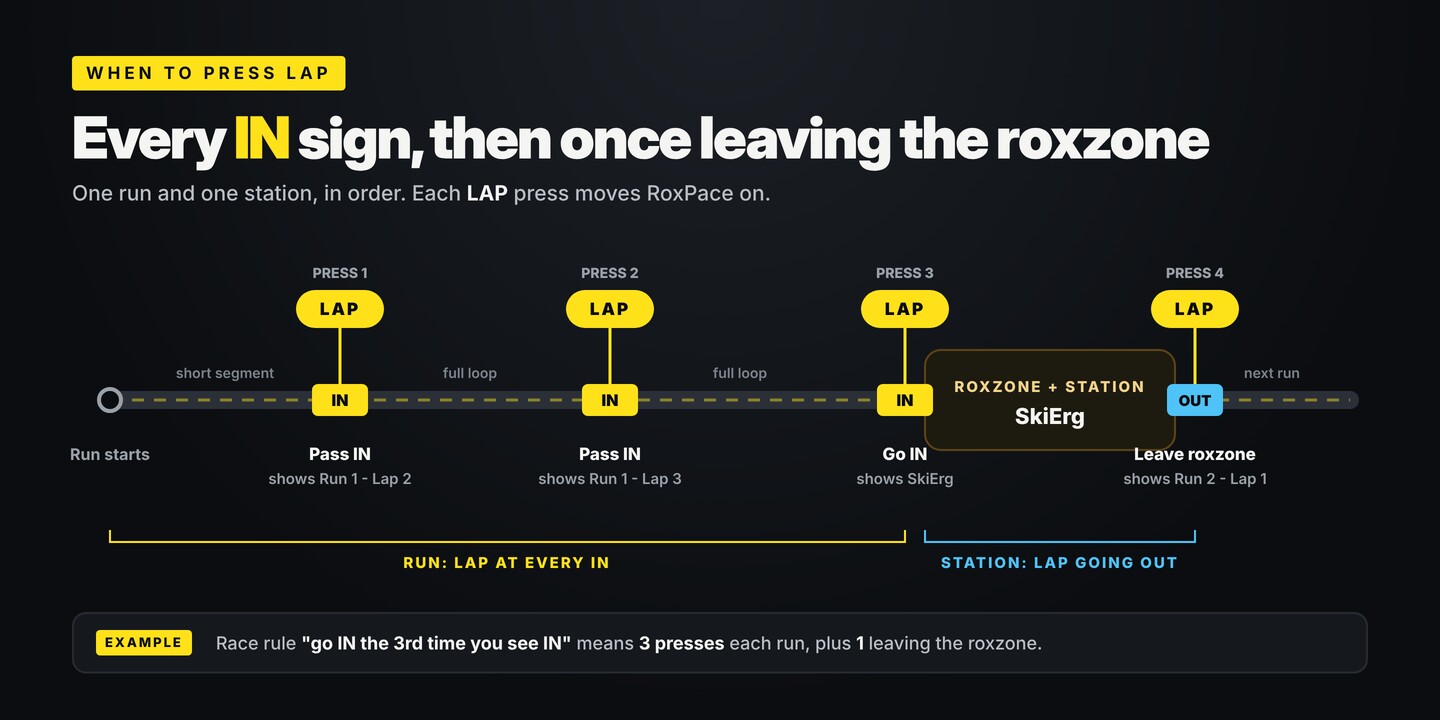
- Press LAP every time you pass the IN sign, including when you go in, and once more as you leave the roxzone.
Something not right?
- RoxPace isn't in the Connect IQ list on the watch: sync your watch from Garmin Connect and check RoxPace shows as installed in the Connect IQ app.
- It never finds your race: check your phone is nearby with Bluetooth on, and that your race is listed on the race list. You can also enter its code in RoxPace's settings in the Connect IQ app.
- The lap count is out: check Auto Lap is off. A missed press can be caught up by pressing LAP until the top line matches where you are.